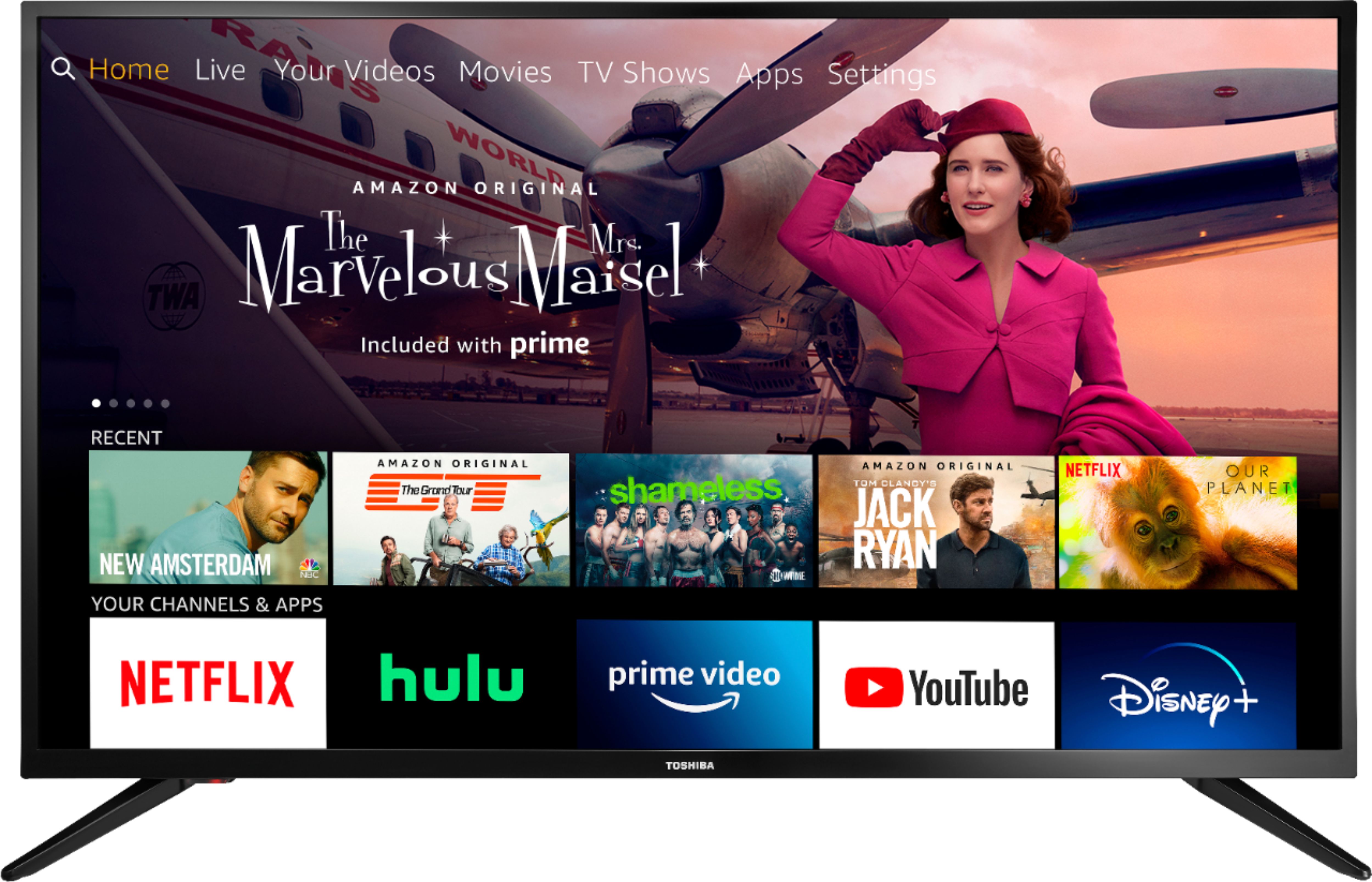
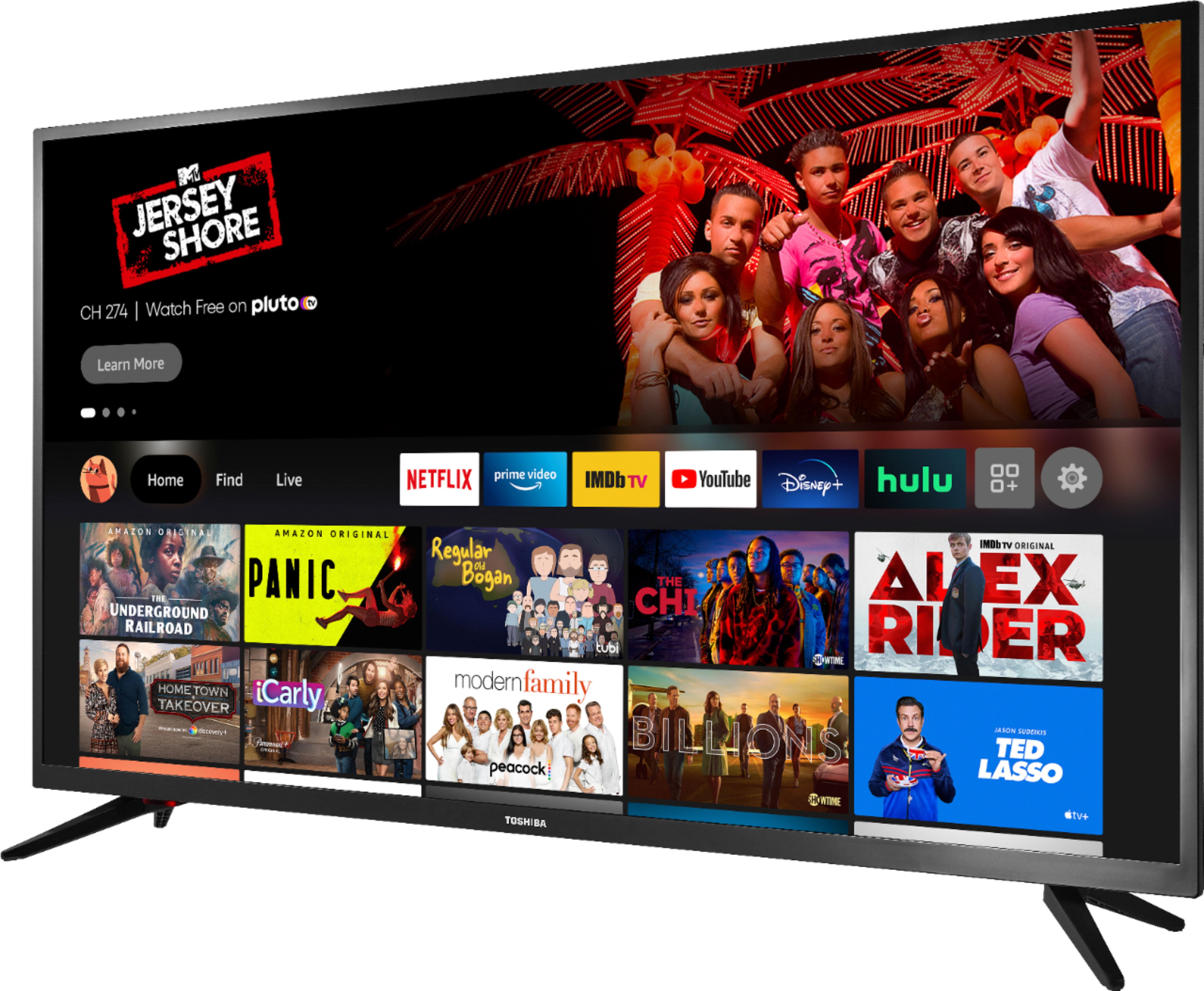
A:AnswerIt means that it comes pre-loaded with Amazon Prime and the apps that are friendly with Prime such as Hulu, Netflix, IMDb, YouTube, Disney. You connect your TV to your WiFi and then log into each account or create accounts and then you can stream from any of the apps very easily. It took less than 10 minutes to set it all up. This is my first smart TV and I love it.
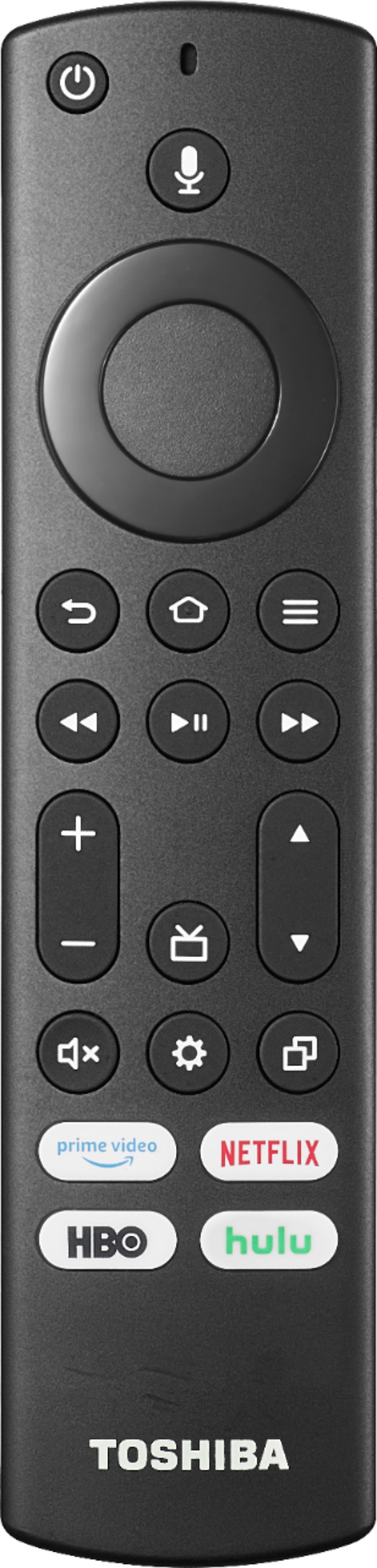
A:AnswerTry the Power On feature, when enabled, the TV turns on displaying the last used input. To activate it, go Home > Settings > Display & Sounds > Power On and select Last Input.
To change the picture settings long press the Home button and select Picture.
David M. - Toshiba Support
A:AnswerNo, you don’t. You would just need to connect the TV to your WiFi when you’re setting it up. This TV already comes with Fire TV, so you don’t need a fire stick.
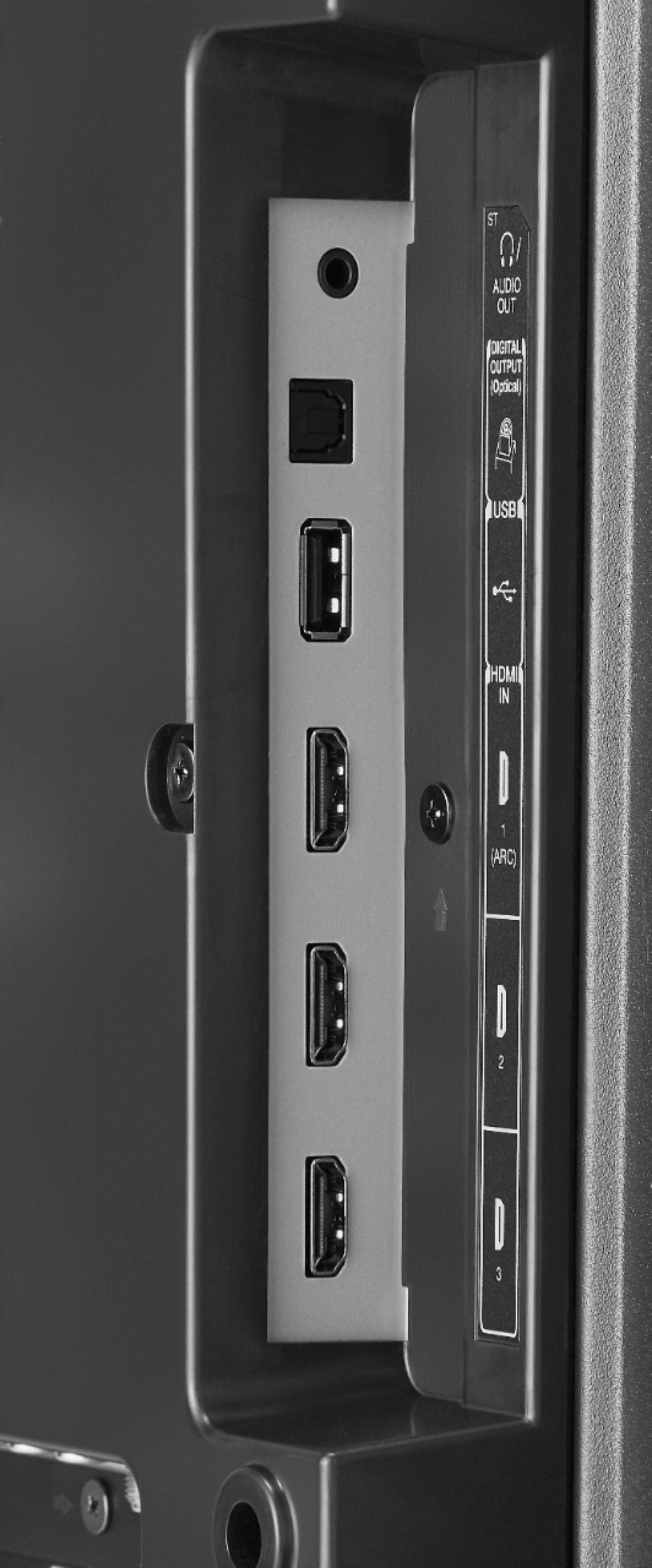
A:AnswerI accidentally discovered that I can listen to tv's built-in speakers as well as bluetooth headsets simultaneously. My tv does not have built-in bluetooth but I attached Mee bluetooth adapter to TV's Optical Audio out using Optical audio cable. You can attach up to two bluetooth devices to this Mee adapter. I attached bluetooth headset plus a bluetooth speaker. I accessed tv's Sound settings, selected TV Speaker for Sound Output, then accessed Expert Settings, changed Digital Output to PCM. That's it. Now I can listen to tv speakers as well as bluetooth headsets simultaneously. If you have problem, go back and select tv's speakers. I was able to listen to tv speakers, bluetooth headphones and a bluetooth speaker, all three at the same time. Play a little bit back and forth. Make sure you attach power cable to the adapter and Optical audio cable as well. You can power up the bluetooth adapter via a USB cable to TV's USB port also. Good luck.
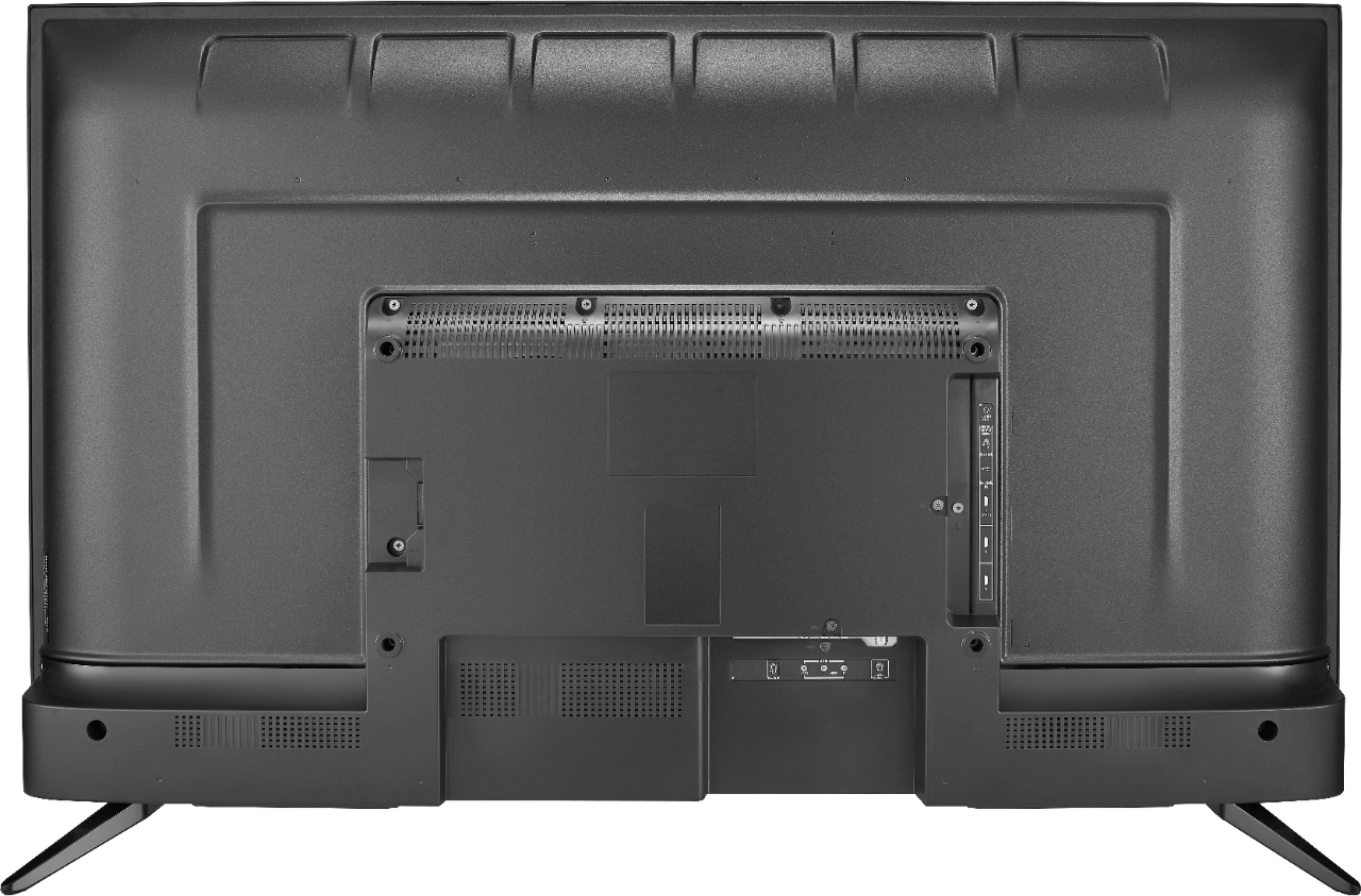
A:AnswerIt’s has the legs but u can put on a wall mount without a problem I have it wall mounted so I would assume with proper equipment it can be on a swivel too